← FastTech Computers

Help

Questions people ask us.

Short answers, in plain words. Or talk to a real person at our shop. Asking never costs anything.

Call 941-477-8324

Mon–Fri 10:00–5:30 · Sat 10:00–2:00

Something feels wrong

The two situations we hear about most.

A page says my computer is infected.

Do not call the number on the page. Do not click anything on it. Real warnings from Microsoft or your antivirus never give you a phone number to ring.

Close the page. If it will not close, turn off the Wi-Fi or unplug the network cable, then call us. Shield shows a warning box over pages like this, but only you can decide what to do next. Calling early costs you nothing.
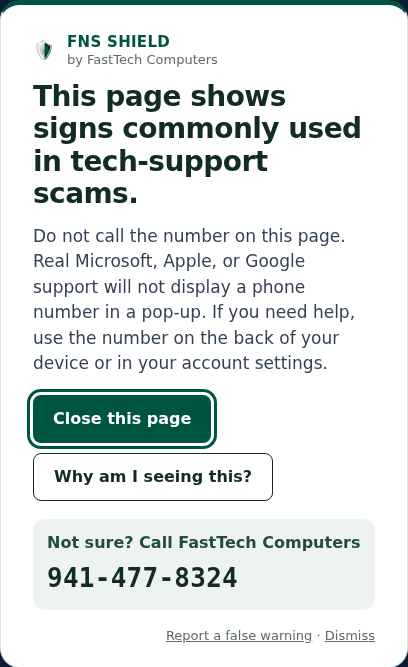
Shield's warning box: This page shows signs commonly used in tech-support scams, with a Close this page button and FastTech's phone number.
What Shield's warning looks like. Choose “Close this page”.
Someone called saying they’re Microsoft.

Hang up. Microsoft does not phone people. Neither does your bank or Amazon. And no real company will ask you to install a remote-control program.

If you already let them in, turn off the Wi-Fi or unplug the network cable now, then call us. If you used online banking, call your bank next. Do not be embarrassed — these people do this for a living.

If the Shield Windows program is installed and asks “Did a phone call, pop-up, or email tell you to open this?”, answer honestly. If someone told you to, press Keep me safe — close it.

Using Shield

Checking it is on, connecting the Windows program, and moving it to another browser or computer.

Two words you will see here. Your browser is the program you use to go on the internet, such as Google Chrome or Microsoft Edge. The add-on is the small part of Shield that sits inside the browser and checks each page.

What’s new

  • Before it connects the Windows program, your account page asks Is this your computer? and shows the computer’s name. Why it asks.
  • Connecting the Windows program is quicker. Open the sign-in page now opens right at the box for the code. How to connect it.
  • When you make your account, the 6 numbers we email you are in the email’s subject. You can read them without opening the email.

Is Shield on?

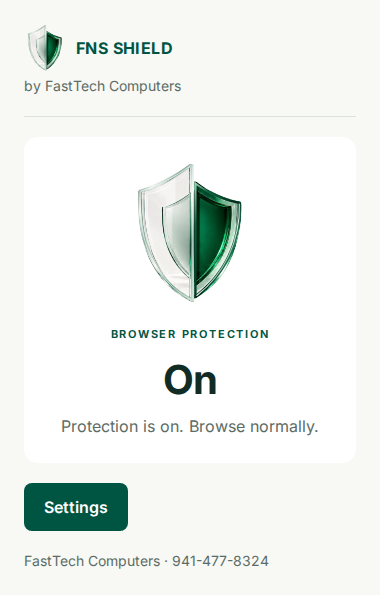
Click the small shield icon in the top-right of Chrome or Edge. The word at the top tells you: On, Paused, Stopped or Not set up yet. On is what you want.

If you have the Windows program (Shield Complete), look for the small blue shield by the clock. Blue means working. Grey means off.

Not sure what you are seeing? Call us and we will look with you.

Example of the Shield add-on window once setup is finished, showing Browser protection: On. Protection is on. Browse normally.
What you’ll see once setup is finished. This is what “On” looks like.
How do I add it to Edge?

Edge calls add-ons “extensions”. Open edge://extensions and turn on Allow extensions from other stores. That lets Edge use add-ons from Google’s Chrome store, which is where Shield lives. Then use the same link we gave you for Chrome and press the add button. Use our link rather than searching the store: Shield is not listed in the search, and another company’s add-on with a similar name could come up instead.

It is easier on the phone with us. We will do it together.

I got a new computer.

Your plan covers one computer, and every browser on it (up to 3). To move it, sign in to your account page on the new computer. Open Got a new computer?, press Move it to this computer, then Yes, move it. Then add Shield to your browser there.

For the Windows program, open Got a new Windows computer? on your account page, press Free it for a new Windows computer, then Yes, free it. Then connect FNS Shield on the new computer (how to connect it).

The old computer switches off the next time it checks in. Call us and we will do it with you.

What does my account page say about each computer?

Your account page has a box for each computer on your plan, headed Windows program or Browser protection. On a plan for more than one computer, it also says which one, such as Computer 1 — Windows program. Its Status line tells you how that computer is doing.

  • Protected, last checked in today (or yesterday, or on a day or date), in green. All is well. Each computer checks in with us about once a day while it is on.
  • Working. Your plan is fine, but this computer has not checked in with us yet. It changes to Protected once it does.
  • Not checked in since a date, in dark orange. We have not heard from this computer for more than a week. Nothing is wrong with your plan, and it does not mean anything got in. Usually the computer was switched off, or Chrome or Edge was not opened.
  • Turned off, in red. Shield was switched off for this computer, for example after a refund. If you did not expect this, call us.
  • Ended, in red. The paid time for this computer ran out. If you have paid, call us and we will check it with you.

It says “Not checked in since”. What do I do?

  1. Have you used that computer since that date? If not, there is nothing to fix. Next time you switch it on, or open Chrome or Edge on it, Shield checks in by itself. It usually takes a few minutes, but it can take up to a day.
  2. If you have been using it, check that Shield is on (how to check). For the Windows program, look for the small shield by the clock. It may be hidden under the ^ arrow. Not there? Open FNS Shield from the Start menu.
  3. Still says Not checked in since the next day? Call us at 941-477-8324 and we will check it with you. It is included with your plan.

Gave that computer away, or got a new one? See I got a new computer.

How do I connect the Windows program?

You need this only on Shield Complete or Family, once on each Windows computer.

  1. Open FNS Shield on the Windows computer. Press Sign in with my FNS Shield account.
  2. It shows Your code is and a code of 8 letters and numbers, like KD7M-2QXP. Press Open the sign-in page.
  3. Your browser opens at the box called Code from FNS Shield for Windows. If it says Sign in to connect your computer, sign in with your email and password first. It brings you back to the box.
  4. Type the code and press Connect this computer. Capital or small letters both work, with or without the dash.
  5. The page asks Is this your computer? and shows the name of the computer that made the code. It tells you where to see your Windows computer’s name. If the two names are the same, press Yes, connect this computer.
  6. The page says Done. Go back to the Windows computer. In a few seconds the program says Done — this computer is protected.

Only type a code that your own screen is showing you. If someone on the phone reads you a code to type, hang up and call us.

The Windows program code did not work.
  • It ran out of time. A code lasts 10 minutes. In the program, press Sign in with my FNS Shield account again for a new one.
  • “That code was just used.” Look at the program. It may already say it is protected.
  • “Too many tries.” Wait ten minutes, then get a new code.
  • “Every Windows computer on your plan is already in use.” Your plan is on another computer. On your account page, open Got a new Windows computer?, press Free it for a new Windows computer, then Yes, free it. Or call us.
  • You pressed Cancel. That code can’t be used again. In the program, press Sign in with my FNS Shield account again for a new one.

Still stuck? On your Windows computer, press Sign in with my FNS Shield account again for a new code. If that doesn’t work, call us: 941-477-8324. We will do it with you.

Why does Shield ask me to confirm my computer’s name?

So nobody else’s computer gets your protection.

Each code belongs to one computer. If someone on the phone reads you a code and you type it, their computer could be connected to your plan. Checking the name stops that.

The page tells you where to see the name on your Windows computer: in FNS Shield, under the code, or in Settings, then System, at the top. If the two names are the same, press Yes, connect this computer. If they are not, press Cancel, this isn’t my computer and call us: 941-477-8324.

Windows often gives computers names like DESKTOP-7K2QH9M. That is normal. What matters is that the two names match. If the page says it can’t show the name, only press Yes if you are looking at the code in FNS Shield on your own Windows computer right now.

Will it slow my computer?

No. The browser add-on only checks the page you are looking at, which costs almost nothing. The Windows program only watches which programs start. You should never notice either one.

Does it replace my antivirus?

No. Keep your antivirus. Shield warns you about a different kind of attack — the one where you are talked into doing the damage yourself, which antivirus cannot see. Shield runs alongside Windows Security or whatever you already use.

Your plan and account

Signing in, prices, and cancelling.

I forgot my password.

Go to shield.fasttechpc.com/portal and press Forgot your password, or never made one? Get a code. Type your email address and press Email me a code.

Open the email, then type the 6 numbers on our page. You do not need to leave it. Choose a new password (at least 8 letters or numbers) and press Sign me in. Press Show to check what you typed. The code works for 15 minutes.

Nothing arrives? Check your spam folder, then call us. You can also press Email me a sign-in link instead.

What does it cost?
  • Shield Browser — $10/month ($99/year). The browser add-on on 1 computer.
  • Shield Complete — $29/month ($290/year). The browser add-on plus the Windows program, on 1 computer.
  • Shield Complete Family — $49/month ($490/year). The same, on 3 computers.

Want us to set it up for you at the shop? The first set-up is free, on any plan. A later, separate visit, such as for a new computer, is $79, and it is waived if you pay for the year. See the plans page for what is included.

Monthly is the usual choice. To pay for the year instead, press Switch to yearly under your order on the payment page. Already paying monthly? Call us and we switch it for you. The yearly price starts at your next renewal, and there is nothing to do on your computer.

What emails do I get after I pay?

Two, at the email address you paid with:

  1. A receipt from Square, the company that takes the card. Keep it for your records.
  2. “Your FNS Shield plan is paid”, from us. It has one button, Open my account page, and 3 short steps.

You do not need anything in either email to finish. On the computer you want protected, open your account page and sign in. It shows each step.

The bottom of our email lists your license keys. Most people never need them, so you can skip that part. Never read your keys to anyone on the phone, even if they say they are FastTech.

Our email is not there? Check your spam folder, then call us.

How do I cancel?

Call us and we cancel it. There is no contract and no cancellation fee. Every plan runs month to month or year to year.

If you call within 30 days of your first charge, we refund that charge in full, with no reason needed.

If you switched from monthly to yearly, the same goes for your first yearly charge: call within 30 days of that charge and we refund it in full.

Still not sure? Call a real person.

Same shop, same people. We will look with you.

Call 941-477-8324